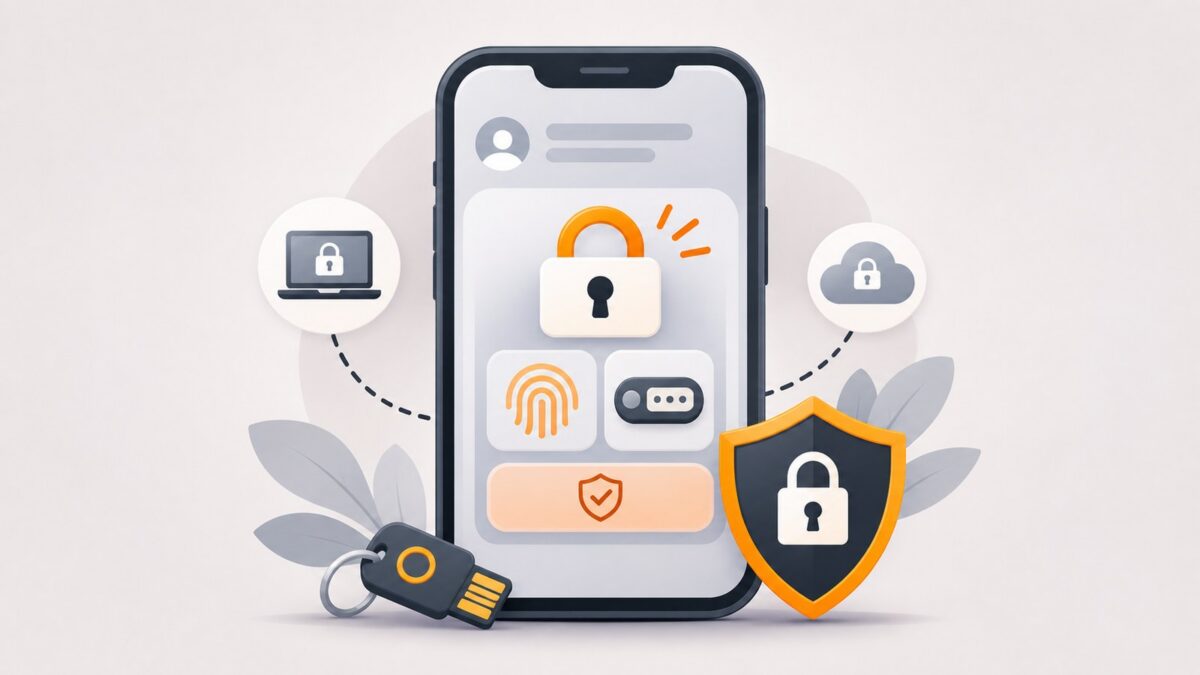
A strong password matters, but passwords can be exposed in a data breach, stolen through phishing, or reused across services. Two-factor authentication (2FA), often called two-step verification, adds another check when you sign in. That extra step can make it harder for someone to access an account even if they know your password.
You do not need expensive software to begin. Many major email, social media, and cloud services provide extra sign-in protection in their security settings.
What is two-factor authentication?
Traditional sign-in relies on something you know: your password. With 2FA, a service also asks you to prove you have access to a trusted device, security key, or another approved method. Multi-factor authentication (MFA) is the broader term for using multiple types of proof.
Some modern services support passkeys, which can let you sign in with a device unlock method instead of typing a password. Passkeys built on FIDO standards provide phishing-resistant authentication when correctly implemented and used. The exact options depend on the service and device.
Compare common sign-in methods
| Method | What it does | Key consideration |
|---|---|---|
| SMS or voice code | Sends a one-time code to your phone number | Better than password-only sign-in, but vulnerable to phone-number attacks and some phishing techniques |
| Authenticator app code | Generates a short-lived code in an app | Avoids reliance on SMS delivery, but a code can still be tricked out of you on a fake sign-in page |
| Passkey | Uses supported device-based cryptographic sign-in | Phishing-resistant when properly implemented; set up recovery across devices |
| Hardware security key | Uses a physical FIDO-compatible key | Strong phishing-resistant option; consider a spare key for recovery |
For accounts that support passkeys or FIDO security keys, these are generally preferable to one-time codes. CISA recommends phishing-resistant methods where feasible.
How to turn on Google 2-Step Verification
- Open your Google Account settings through Google’s official website or your device settings.
- Select Security & sign-in.
- Under How you sign in to Google, select Turn on 2-Step Verification.
- Follow the instructions and review which sign-in methods are available for your account.
- Set up recovery options and save backup codes securely if your account offers them.
Google’s screens can differ by account, device, and security program. School and workplace accounts may have settings managed by an administrator.
Avoid these mistakes
Sharing verification codes
Never send a sign-in or backup code to a caller, chat contact, or someone claiming to be support. A request for a code may be an attempt to access your account.
Approving unexpected prompts
If a sign-in approval appears when you are not signing in, deny it and review your account’s security activity.
Forgetting recovery planning
People sometimes lose their phone or change their number. Before you rely on a method, check whether you can recover access using another trusted device, a spare key, or backup codes. Keep recovery codes somewhere secure and separate from the device you might lose.
Treating all 2FA as equally secure
Codes can still be phished. Passkeys and FIDO security keys are designed to resist fake-website sign-in attacks. Use the strongest supported method that you can reliably manage.
A short account-security checklist
- Use unique passwords for accounts that still require passwords.
- Turn on extra sign-in protection for email first: email is often used to reset access to other services.
- Prefer passkeys or security keys when available; otherwise use an authenticator app or another supported second step.
- Review active devices and recovery contacts periodically.
- Store backup codes privately, and never post screenshots of them.
- Visit the official website directly instead of following unexpected login links.
Frequently asked questions
Is two-factor authentication completely secure?
No. It substantially improves account protection, but some methods can be phished or bypassed. Stronger phishing-resistant methods and cautious account habits still matter.
Is an authenticator app better than SMS?
Authenticator codes avoid some SMS-specific risks, but both are vulnerable to certain phishing attacks. A passkey or FIDO security key offers stronger phishing resistance where supported.
What if I lose my phone?
Use a recovery option you configured beforehand, such as a backup code, another trusted device, or a spare security key. Follow the service’s official recovery process.