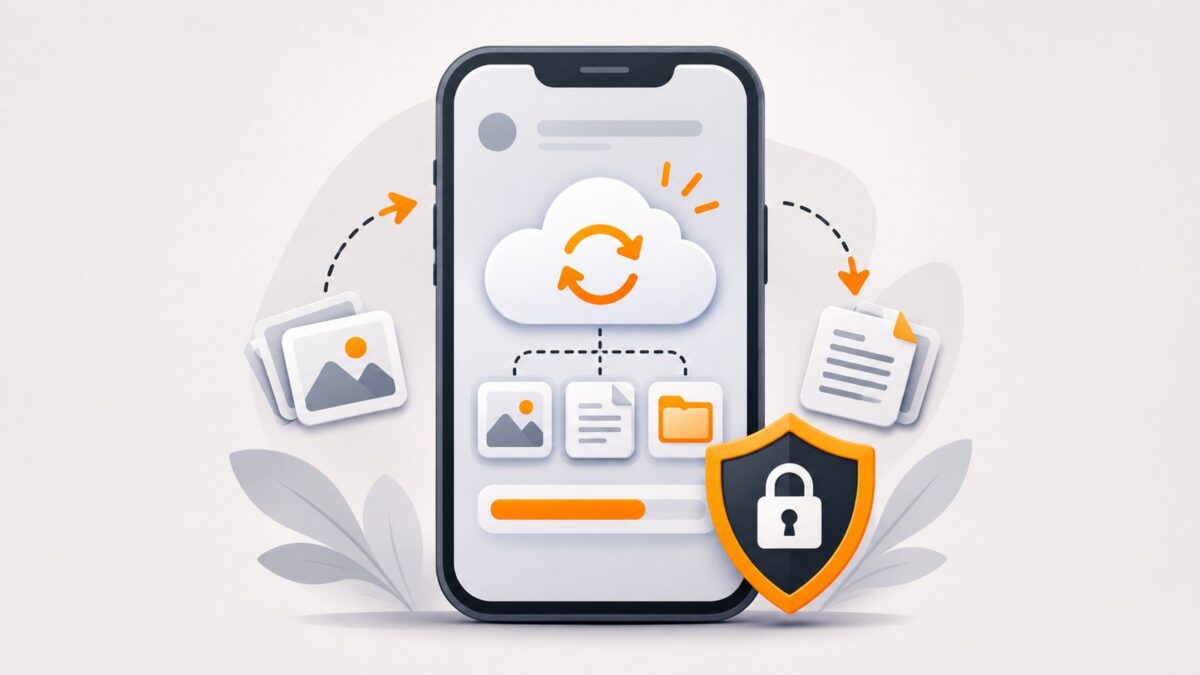
A lost, damaged, or replaced phone can mean losing access to photos, messages, contacts, or personal documents. A backup is a separate saved copy of data that can help you restore information later. The best time to check your backup is before your phone fails or you reset it.
Android and iPhone both offer built-in options. What gets saved depends on your phone, operating system, apps, account, and backup settings. A backup should never be assumed complete without checking its details.
First, understand what a phone backup includes
A phone backup is not always the same as synchronizing photos or contacts. Some data may be stored with an online account and synced separately, while other information depends on a device backup. Third-party apps may use their own backup systems. In particular, not every app can restore all its data and settings.
Before starting, list the things you cannot afford to lose: photos, contacts, messages, authenticator or recovery information, app documents, and locally saved files. Then confirm each is covered by a backup or separate export.
How to back up an Android phone
Google’s current Android help documentation describes a built-in device-backup process:
- Open your phone’s Settings app.
- Go to Google and, where shown, All services.
- Under Backup and restore, open Backup.
- Turn on backup if it is not already enabled, and select Back up now.
- Review Backup details to see which data categories are included.
Menu names vary across Android versions and phone manufacturers. Google’s help notes that a device backup may take up to 24 hours. Do not erase your old phone while the backup is still in progress.
What about photos and WhatsApp?
Google Photos can back up pictures and videos separately, if you enable its backup setting. Likewise, apps such as WhatsApp have their own data-backup or transfer processes. Verify both the device backup and each important app’s backup rather than assuming one switch saves everything.
Cloud backups also use account storage, so check available space before relying on automatic backups.
How to back up an iPhone with iCloud
Apple’s documented iCloud method is:
- Connect to Wi-Fi.
- Open Settings, tap your name, then iCloud.
- Open iCloud Backup.
- Turn on Back Up This iPhone if needed, or select Back Up Now to start a manual backup.
- Stay on Wi-Fi until it finishes, then check the displayed date and time of the latest backup.
For regular automatic backups, Apple advises keeping the device connected to power and Wi-Fi while the screen is locked. Check iCloud storage if the phone reports insufficient space.
How to make a computer backup of an iPhone
A local computer backup can provide another recovery option:
- On a Mac, use Finder on supported macOS versions.
- On Windows, use the Apple Devices app, or iTunes where appropriate.
- Connect the phone, select the device, and choose Back Up Now.
- Consider Encrypt local backup. Apple states encryption is needed to include certain sensitive information, such as Health and Activity data, in a computer backup. Keep the encryption password safe: losing it can prevent restoring that encrypted backup.
A computer backup requires enough free disk space. Store the computer and its backups securely.
How to check whether a backup is useful
A successful-looking backup icon is not the whole story. Before switching phones or performing a factory reset:
- Check the latest backup date and whether the job finished.
- Review what data types are included and what is synchronized separately.
- Confirm you can sign in to the Google Account or Apple Account used for backup.
- Check that you have access to recovery methods and important app data.
- Do not delete the original data until the new phone has been set up and key items have been verified.
Android restores can be limited by differences between operating-system versions, and some app data may only return during initial device setup. Plan your switch accordingly.
Common backup mistakes
Assuming everything is backed up
Some apps do not support full restore, and some photos or files are stored in separate services. Verify the items that matter most.
Running out of cloud storage
A backup may fail or stop updating if storage is insufficient. Review available space and remove unnecessary data only after confirming it is safe to do so.
Losing access to the backup account
Your backup is not useful if you cannot sign in to retrieve it. Protect your account and update recovery options.
Resetting too early
Finish and verify the backup first. After transferring to a new phone, inspect key contacts, photos, files and apps before wiping your old device.
Frequently asked questions
Does Android automatically back up every app?
No. Google notes that not every app can back up and restore all data and settings. Review individual app options as necessary.
Is iCloud Backup the same as copying files to a computer?
No. They are different backup methods with different settings and storage requirements. A computer backup can complement cloud backup.
Should I keep more than one copy?
For irreplaceable items, having a second independent copy reduces reliance on a single device or account. Confirm copies can actually be accessed when needed.